
Build your own signature look with Custom Presets in Google Photos
One filter won't carry a whole album. Build a small set of Custom Presets, one per lighting condition, and apply each across its group in Google Photos. Your look, reused, no photos leaving Google.
Batch is not affiliated with Google. Google Photos is a trademark of Google LLC.
Every editor with a recognizable look got there the same way: a small set of repeatable recipes, applied with intention. The single "filter for everything" doesn't exist, and the people whose albums look like theirs aren't using one. They built a handful of looks they trust, and they reuse them. That's the whole trick.
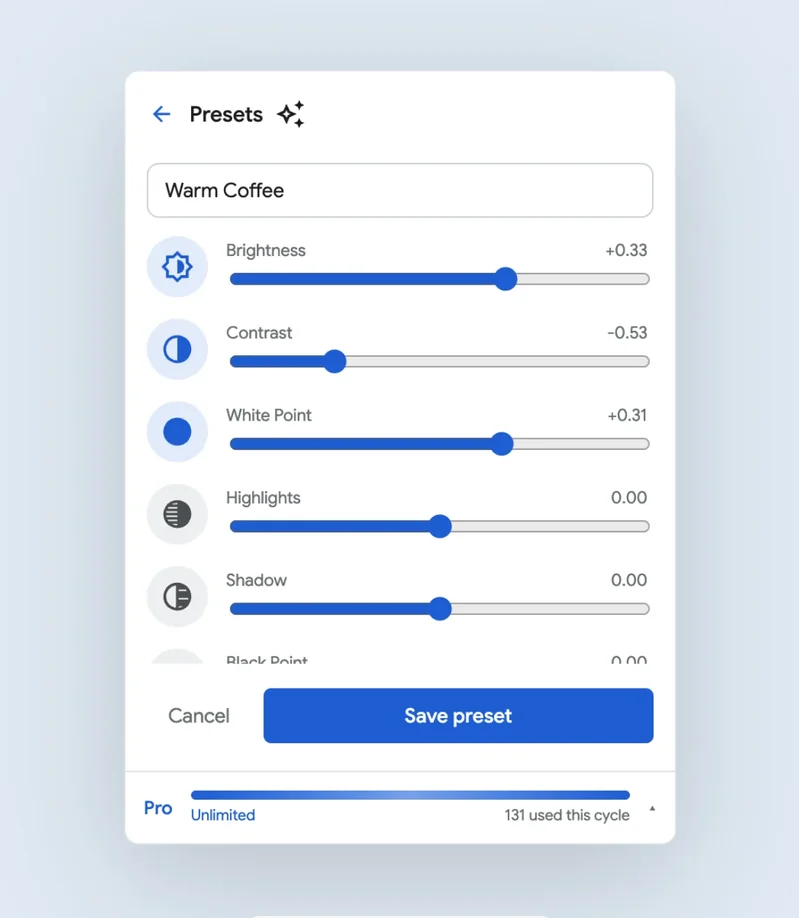
Custom Presets in Batch is how you do the same thing inside Google Photos, on the album that already lives in your account. You dial in a look you like, save it, and apply it across a selection in one pass. The adjustments are Google Photos' own — brightness, contrast, warmth, shadows, the rest — so the output looks like the editor's output. It just looks that way across two hundred photos instead of one.
Why one filter never carries a whole album
Most albums contain more than one kind of photo. A trip moves through morning light, harsh afternoon sun, golden hour, and a dark restaurant by the end of the day. A real-estate set steps through a sunny living room, a north-facing bedroom, a windowless bathroom. A product catalog mixes white-background stills with on-model lifestyle shots. A single global filter that flatters one of those conditions will wash out, crush, or miscolor the rest.
The move experienced editors make is the opposite of one filter for everything: group photos by condition, build one look per group, apply each to its own selection. Three or four looks usually cover everything a project throws at you, and you reuse the same set on the next project.
The pattern: one preset per condition
Sort the album into rough buckets — lighting, surface, subject, time of day, whatever varies in your work. For each bucket, you'll save one preset. The buckets don't need to be perfect; they just need to be similar enough that one set of slider values lands cleanly on every photo in the group.
A few examples of how the bucketing tends to fall out:
- By lighting condition. Daylight, golden hour, indoor mixed light, hard shade. Common on event, travel, and lifestyle work.
- By room or surface. Bright rooms, dim rooms, exteriors. Common on real estate, short-term rentals, and interior shoots.
- By product line. White-background catalog, lifestyle on-table, on-model. Common on product and e-commerce work.
- By source. Phone snapshots vs. scanned archives vs. mirrorless. Common on family archives and mixed-decade albums.
Building each look once
Decide what you want one bucket of photos to look like, then dial that look in a single time on a representative reference photo: brightness, contrast, highlights, shadows, white and black point, saturation, warmth, tint, and the rest of Google Photos' Adjust controls. Give it a name and save it. That saved look is a Custom Preset, and it stays in your Batch library tied to your Google account. The full step-by-step for creating and saving a preset lives in the Custom Presets guide.
Names matter more than they seem to. "Warm interior," "Catalog spring drop," and "Travel cohesion" outlast "Looks nice" by years. Name the preset for the project or condition, not the feeling.
Applying a preset to a batch
Gather one bucket at a time. Google Photos' search and albums make this quick: open the album, search the keyword that defines the bucket ("kitchen," "ceremony," "product"), select those photos, click the Batch button in the toolbar, choose Custom Presets, pick the preset for that bucket, and run. Batch works through the selection while the tab stays open. Then do the next bucket with its preset.
A few things stay true the whole time. Your photos never leave Google Photos. The edits happen in Google's own editor, the same one you would use by hand, so there are no downloads, no re-uploads, and no duplicate copies in your library. Every edit is reversible per photo with Revert if you want to redo a group. Custom Presets is free on every tier and counts per photo against your monthly quota.
Where the pattern fits
The same shape — group by condition, one saved look per group — works across most projects where the goal is an album that feels like one set:
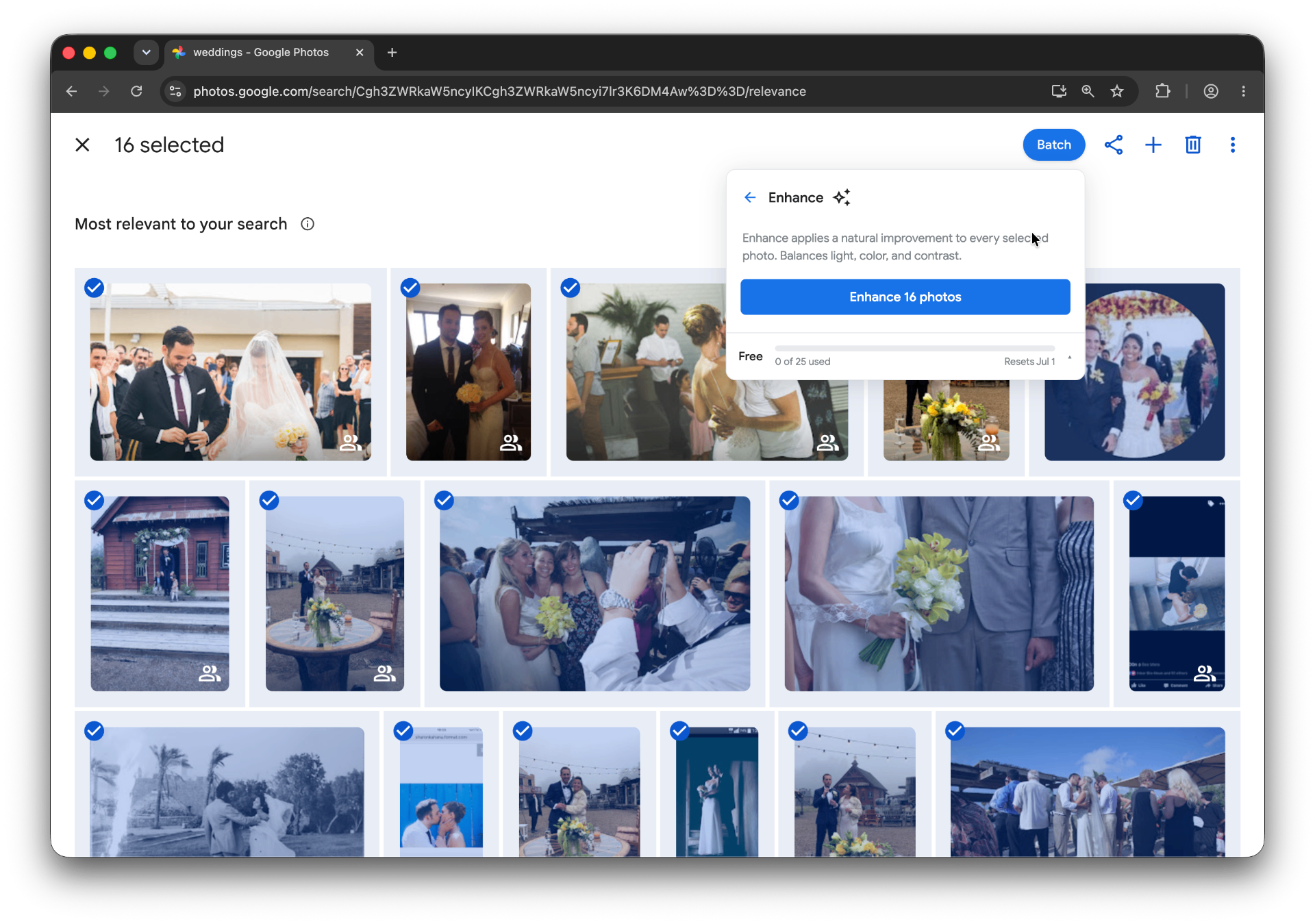
- Weddings. Three presets usually cover a whole day: one for daylight and ceremony, one for golden hour and sunset portraits, one for the reception's mixed warm and colored light. Apply each across its lighting group. Reuse the same three on every wedding after.
- Real estate and short-term rentals. A property shot room by room, each under different window light. One preset to brighten dim interiors, one to tame sunny rooms with blown windows, one for exteriors. The listing reads as a cohesive property rather than a collection of phone snapshots.
- Product sellers and shops. Etsy, Poshmark, Shopify, or a small store keeping every product photo in the same house style. Build a preset per product line — a candle catalog and a vintage clothing catalog want different looks — and the shop reads as curated.
- Travel and vacation albums. A two-week trip shot across mornings, harsh afternoons, and evenings, pulled into one mood. (The vacation photos guide walks through that arc end to end.)
- Family archives. A scanned or mixed-source batch given a gentle, uniform tone so decades of photos sit together on one page. One preset to neutralize old yellow casts, another for the more recent digital scans.
Anyone who shares large albums and wants them to look intentional gets the same benefit. The point of a Custom Preset is that the look is yours. Where Google's 19 built-in filters are fixed recipes someone else wrote, a preset is the one you tuned, saved, and reuse for as long as it works for you.
Where this sits next to Lightroom
Lightroom is the tool for local adjustments, masking, curves, healing, lens corrections, and precise grading. Custom Presets does not replace that, and it is not trying to.
What it does replace, for a lot of people, is the roundtrip. If you open Lightroom mainly to apply one consistent global look to an album, you then export the results and re-upload them to wherever the album actually lives. When that place is Google Photos and the album is shared as a link, Custom Presets does the consistent-look part in place, with no export and no re-upload. For deep retouching and frame-by-frame grading, Lightroom is still the right tool. For sharing a large album that looks like one set, this is the shorter path.
What a Custom Preset can and can't do
The honest boundaries, so you know when to reach for it:
- A preset is the global Adjust sliders applied to the whole photo. There are no brushes, no masks, no per-area edits, no curves, and no imported third-party looks.
- The same preset lands a little differently on each photo because each one starts from different exposure and white balance. That is exactly why you group by condition and use a preset per group instead of one preset for the whole album. For a group shot under very mixed light, run Auto Enhance first to even out exposure, then apply the preset.
- HDR is not part of a preset. In Google Photos, changing HDR forces a save as a separate copy, which would duplicate your photos. Leaving it out keeps every preset saving in place, cleanly.
- Your photos stay in Google Photos the entire time, and every edit is reversible with Revert.
Frequently asked questions
Can I import a Lightroom preset or an .xmp file?
No. Custom Presets are built from Google Photos' own Adjust sliders. You can recreate a look you like by dialing in the sliders, but you cannot import a .xmp, .dng, or Lightroom preset file.
Will the preset look identical on every photo?
The settings are identical; the result varies with each photo's starting exposure and color. That is why this workflow groups photos by condition and uses a different preset for each group rather than one look for everything.
Do my photos get uploaded anywhere?
No. Batch runs inside your Google Photos tab and drives Google's own editor. Nothing is copied to another server and nothing leaves your Google account.
Is Custom Presets free?
Yes. It is available on every tier, including Free, and counts per photo against the same monthly quota as the other actions. A large project fits on Pro's unlimited month if you are doing it all at once.
Can I undo a preset if I don't like it on a group?
Yes. Each photo can be reverted to its original through Google Photos' Revert, then you can apply a different preset to that group.
Dial in the look you want, save it as a Custom Preset, and apply it across the selection while the tab stays open. A handful of presets covers most projects, and you reuse the same set on every one after.
Build the look once. Reuse it forever.
Batch saves your own looks as Custom Presets and applies each across its group in Google Photos.
Start free · Works in Chrome on desktop · Photos stay in Google Photos
Where to go next
- How to create and apply custom presets in Google PhotosSave one tuned photo as a preset, apply it across the album.
- Cleaning up wedding photos in Google PhotosFinish the guest album before the photographer's gallery arrives.
- Enhancing vacation photos in Google PhotosFinish the vacation album in a Sunday afternoon.
- Editing real estate photos in Google PhotosOne consistent edit pass across the whole listing set.
- Editing product photos in Google PhotosPrep an entire product drop without per-photo work.
- Restoring old family photos in Google PhotosFinish the family archive you've been avoiding for years.
- How to bulk edit Google PhotosThe pillar guide to bulk editing in Google Photos.