
Free up Google Photos storage by converting Live Photos to stills
Running out of Google Photos storage? Live Photos quietly take extra space. Batch converts them to stills in bulk so you keep the image and reclaim storage.
Batch is not affiliated with Google. Google Photos is a trademark of Google LLC.
If your Google Photos storage is almost full, the standard advice is familiar: delete large videos, clear old screenshots, empty Trash, clean up Gmail attachments, move files out of Drive, or pay for more Google One storage.
All of that can help. But there is one storage problem most people never think to look at: Live Photos. Google often calls these Motion Photos.
A Live Photo looks like an ordinary photo in your library, but it stores more than a still image. It saves the photo plus a short motion clip. That motion is great for a handful of special moments. Across years of uploads, it can quietly take up a surprising amount of space.
If you do not need the motion, Batch can convert your Live Photos into stills in bulk. You keep the photo. You remove the motion. You create a clear path to reclaim storage.
Looking for the full storage cleanup checklist? Start with our guide to freeing up Google Photos storage.
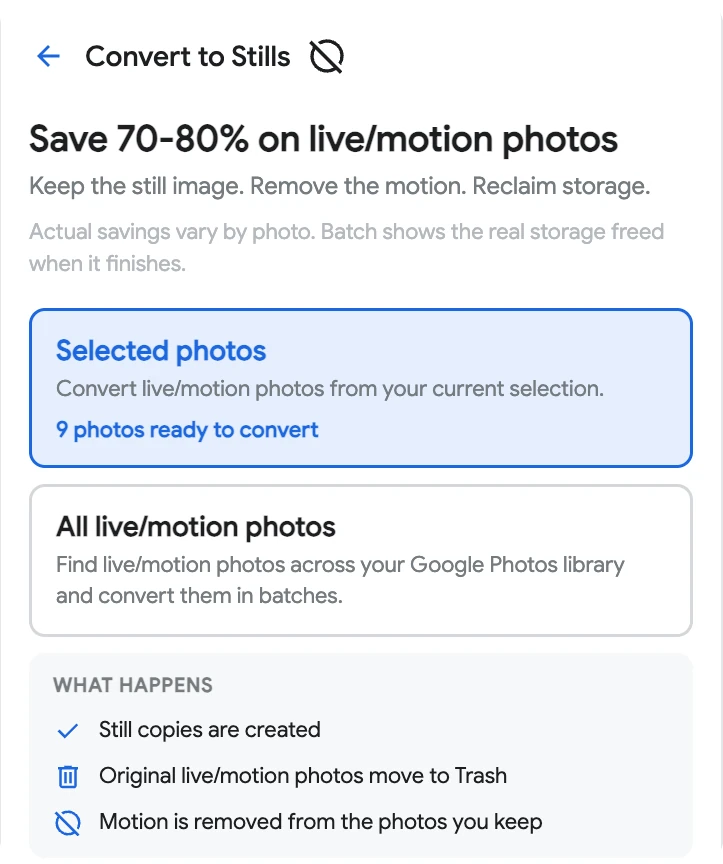
This guide covers why Google Photos storage fills up, what Live Photos actually cost you, and how to convert them to stills, a few at a time or across your whole library.
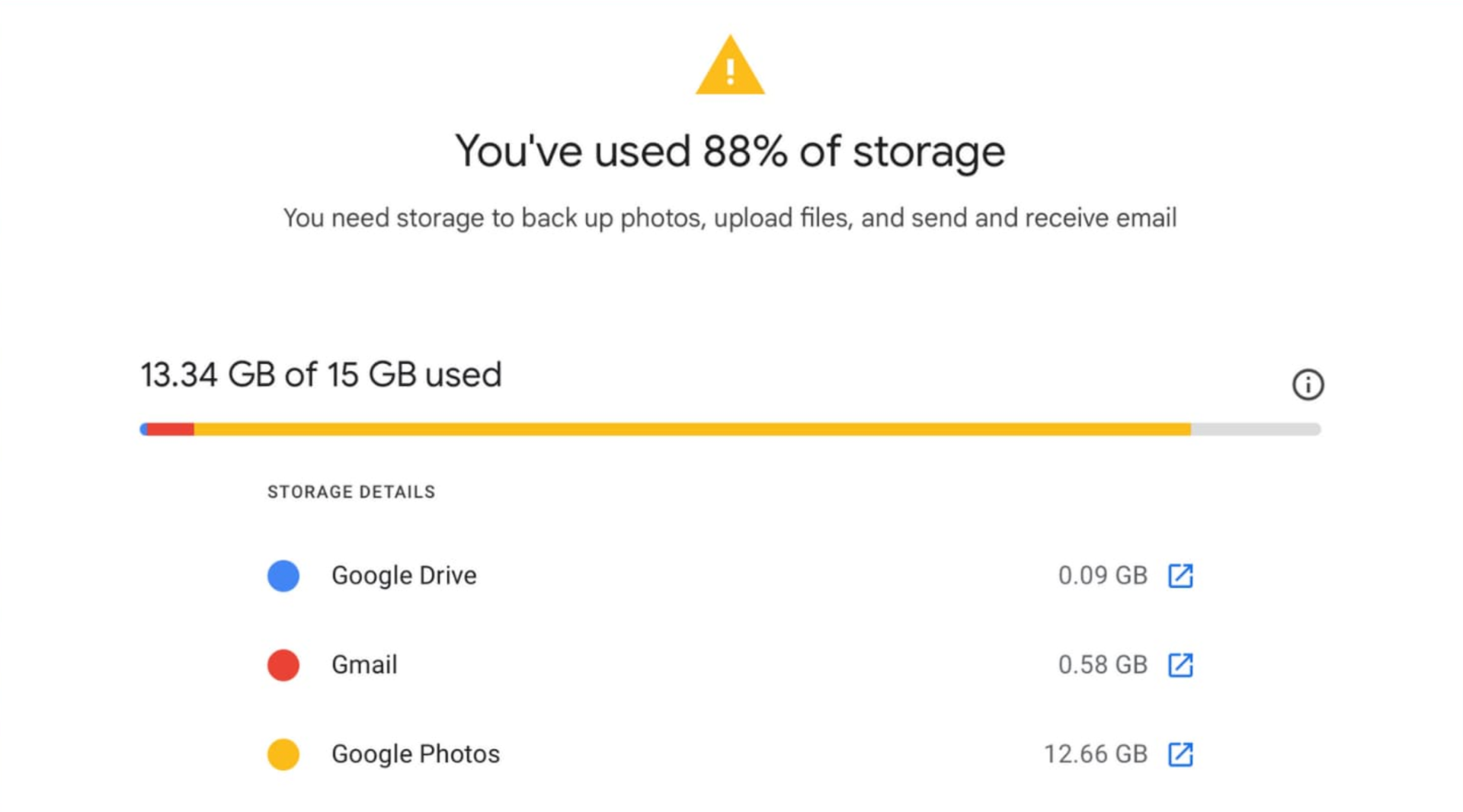
Why Google Photos storage fills up so fast
Your Google storage is shared across Google Photos, Gmail, Google Drive, and more, with 15 GB included on a free account. So even when Photos feels like the obvious culprit, large email attachments and old Drive files can be pushing against the same limit.
Google gives you a few good cleanup tools:
- review large photos and videos
- delete emails with large attachments
- remove large Drive files
- clear spam and Trash
- use Storage Saver to compress existing photos and videos
Those are all good first steps. If you have a 700 MB video you do not need, delete that first.
But those tools are broad. They help you delete, compress, or clean up obvious files. They do not answer a more specific question: what if you want to keep the photo, but remove the motion data?
That is where Live Photos come in.
What Live Photos and Motion Photos actually store
A normal photo is a single still image.
A Live Photo or Motion Photo is the still image plus a short clip that plays when you press, hold, or open it in motion mode. The still is usually the part you care about. The motion is often the part taking up the extra room.
For one photo, it may not matter. Multiply it by years of phone uploads and it becomes real storage.
In Batch testing, converting a motion photo to a still often shrinks it by 70 to 90 percent, though the savings vary by photo.
Why turning off motion does not fix old photos
Turning off Live or Motion capture in your phone's camera helps going forward. It stops new photos from being saved with motion.
It does nothing for the thousands of motion photos already sitting in your library.
And opening one photo, switching off motion, and saving is often not enough on its own. In many cases, Google Photos keeps the original underneath so the edit can be undone later. That means the space is not truly recovered.
To actually reclaim it, you need to create a clean still copy and remove the original motion version. That is the workflow Batch automates.
The manual way, one photo at a time
For a single photo, the process looks like this:
- Find a motion photo in Google Photos.
- Save a still copy of it.
- Confirm the copy looks right and sits in the correct spot in your timeline.
- Move the original motion photo to Trash.
- Empty Trash when you are ready to permanently remove the original and reclaim the space.
That is fine for one photo. It is miserable for hundreds or thousands.
And if converting is not enough because you want a clean start, you can delete all your Google Photos instead.
How Batch converts Live Photos to stills in bulk
Batch for Google Photos is a Chrome extension that works through your library in bulk.
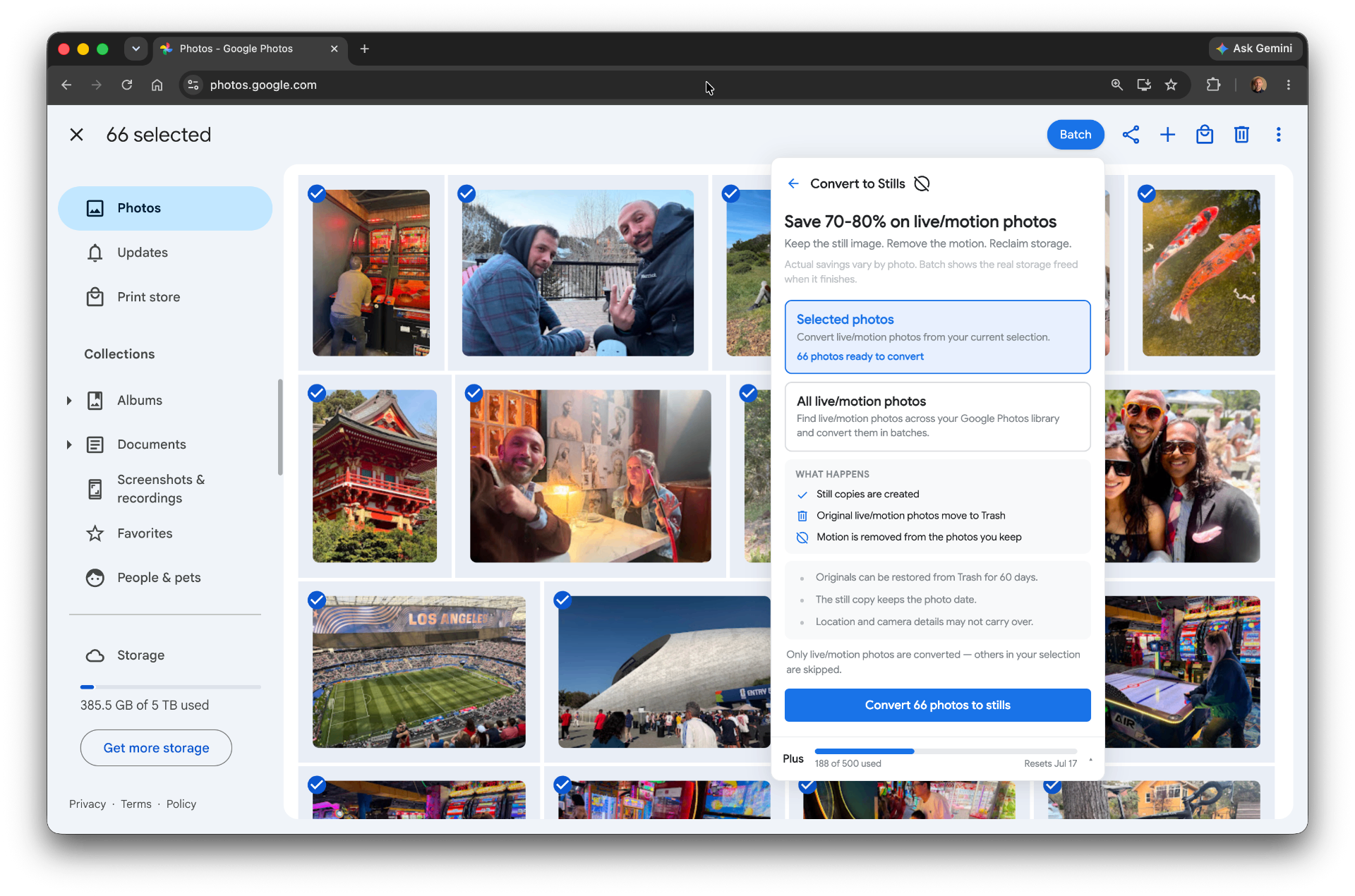
The feature is called Convert to Stills. It runs the repetitive workflow for you: it creates a still copy of each motion photo, keeps the still in your library, removes the motion, and moves the original to Google Photos Trash.
You can run it two ways.
Convert selected photos
Select a handful of motion photos from your main Photos grid, click Batch, choose Convert to Stills, and Batch works through your selection. This is the best way to start. Try a few, review the result, and decide if the tradeoff works for you.
Convert your whole library
Batch can also walk through Live and Motion photos in your library automatically. This is the real time-saver if you have years of them. Because this touches a lot of originals, Batch asks you to type a confirmation before it begins.
Note: Convert to Stills runs from your main Photos library, not from inside albums. Converting moves the original to Trash, which would remove the original from any album it was in. The still copy lands in your library, so the action is intentionally disabled inside album views.
What happens to the originals
Batch does not erase anything forever.
The original motion photo is moved to Google Photos Trash, where it stays recoverable for 60 days. That is your safety window.
To make sure the storage is fully reclaimed, review your still copies first, then empty Trash when you are ready to permanently remove the originals.
Trash is the safety step. Emptying Trash is the permanent cleanup step.
What you keep and what you lose
Convert to Stills is a tradeoff worth understanding before you run it on everything.
You keep:
- the still image
- the original date, so the photo stays in the right place in your timeline
You lose:
- the motion clip
- location data
- camera details and other metadata from the original
- a little resolution on very high-resolution photos, since very large photos may be saved at a slightly reduced size
For everyday photos, that tradeoff is easy. For your most meaningful motion moments, you may want to keep the original.
A simple rule: if the motion is the memory, keep it. If the still is the memory, convert it.
When converting to stills makes sense
This is a good fit for:
- old motion photos where you only care about the image
- everyday phone shots you never actually watch in motion
- vacation and travel photos where the still is enough
- product, listing, and real estate photos
- photos you want to share without the motion
- anyone trying to get back under their Google storage limit without paying for more
It is not meant for every photo. It is meant to give you a precise option between deleting memories and buying more storage.
How Convert to Stills compares to Storage Saver
Storage Saver compresses photos and videos broadly across your library. Convert to Stills solves a narrower, different problem: motion photos carrying motion data you do not need.
You can use both. Storage Saver lowers your overall footprint. Convert to Stills strips the motion from Live Photos while keeping the still you care about.
How to free up storage with Convert to Stills
- Install Batch for Google Photos from the Chrome Web Store.
- Open Google Photos in Chrome.
- Select a few motion photos from your main library, then click Batch.
- Choose Convert to Stills.
- Run it on the small selection first and review the still copies and savings.
- Once you trust the result, use the all-library option to work through the rest.
- Empty Google Photos Trash when you are ready to permanently remove the originals and reclaim the space.
Batch never uploads your photos. The edits happen in your open Google Photos tab.
Convert to Stills FAQ
Does turning off motion free up old storage?
No. Turning off motion capture only affects future photos. To reclaim space from motion photos already in your library, you have to create a still copy and remove the original.
Will I lose the photo?
No. You keep the still image. You lose the motion clip, and the original moves to Trash, where it stays recoverable for 60 days.
Do I need to empty Trash?
Yes, if you want to make sure the space is fully reclaimed. Moving originals to Trash gives you a recovery window. Emptying Trash is the permanent cleanup step.
How much space can this save?
It varies by photo. In Batch testing, motion photos often shrink by 70 to 90 percent.
Does this work inside albums?
No. Convert to Stills runs from your main Photos library, not from inside an album. Because converting moves the original to Trash, it would remove the original from the album, so the action is disabled in album views by design.
What carries over to the still copy?
The original date carries over so your timeline stays intact. Location data and camera details do not, and very high-resolution photos may be saved at a slightly reduced resolution.
Can I try it before converting everything?
Yes. Start with a small selection, review the copies, confirm the tradeoff, then run the all-library option.
Reclaiming storage by hand means repeating the same steps on every single photo. Batch does the repetitive part for you, across selected photos or your entire library, while your Google Photos tab stays open.
Stop converting photos one at a time
Batch converts Live Photos to stills across your selection or your whole library, while your Google Photos tab stays open.
Start free · Works in Chrome on desktop · Photos stay in Google Photos
Where to go next
- Google Photos storage full? Here's how to actually free up spaceSeven ways to free up Google Photos storage, including the one most guides skip.
- How to bulk edit Google PhotosThe pillar guide to bulk editing in Google Photos.
- Cleaning up wedding photos in Google PhotosFinish the guest album before the photographer's gallery arrives.
- Restoring old family photos in Google PhotosFinish the family archive you've been avoiding for years.
- Enhancing vacation photos in Google PhotosFinish the vacation album in a Sunday afternoon.