
Editing sports photos in Google Photos
Bulk edit sports photos in Google Photos — brighten and crop the keepers from a game, recital, or school event before they vanish into the camera roll.
Batch is not affiliated with Google. Google Photos is a trademark of Google LLC.
You got home from the tournament. Took 200 photos. The gym lighting was awful: dim, yellow-tinted, mixed with whatever the LED scoreboard was throwing off. You want to share the good ones with grandparents and the team chat. But it's 9pm, you're exhausted, and the thought of editing each photo one at a time is enough to make you give up and let them sit in your library indefinitely. Like the photos from the last three tournaments before this one.
If you shoot on your phone (and you do), your photos are already in Google Photos because that's where your phone backs up. You don't need to move them anywhere. The library is the workspace.
Here's the arc. Confirm your photos are getting backed up. Organize by kid, sport, season, or event. Pick the keepers from the tournament's worth of photos. Brighten the dim gym shots in one pass. Crop them for the team chat or grandparents' frame. Caption them so you can find Emma's spring season in five years. Share with the people who care.
This post will not pretend you're going to print every photo. It will not pretend you're becoming a sports photographer. It will get you through tonight's tournament photos before bed.
Why your kids' photos pile up in Google Photos
Phones with auto-backup mean every game, recital, and field trip ends up in Google Photos automatically. By the time your kid is in fifth grade, you have thousands of photos accumulated, most of which you've never gone back to look at, much less edited.
The storage math is manageable for most parents. A year of weekly events at phone-quality resolution typically lands around 3 to 5 GB of photos. Most Google One plans cover this comfortably; the free 15 GB tier might pinch if you're also backing up a partner's phone and the family videos.
Verify backup is on once and you're set. On both iPhone and Android, the toggle lives in the Google Photos app's Backup settings. It defaults to off after a fresh install; check the first time, then forget about it.
A tip: don't go back and try to organize five years of accumulated kids' photos in one weekend. The retroactive cleanup project is the path to giving up on this entirely. Start with the most recent event (tonight's tournament) and build the habit forward. The five-years-of- backlog problem solves itself if you stop adding to it.
Organizing by kid, sport, season, or event
Four organization schemes cover most parent libraries. Pick the one that matches how you actually search later.
By kid ("Emma," "Liam") is the best scheme for sharing each kid's photos with their grandparents separately. Grandma on Mom's side wants Emma photos; Grandpa on Dad's side wants Liam photos. The kid-organized albums make this trivial.
By sport or activity ("Soccer," "Piano lessons," "School plays") is the best scheme for tracking progression over years. Watching Emma go from kindergarten soccer to fifth-grade soccer in one scrolling album is its own kind of nostalgia.
By season ("Spring 2026 soccer") is the best scheme for finding "the year Emma made the championship" or "the season Liam started piano." It mirrors how memories work. You remember the season, not the date.
By event ("Westside Tournament April 2026") is the best scheme for sharing immediately after the event. Tonight's tournament becomes one album that you can quickly share with the team chat or post to your kid's grandparents.
Album creation lives in your library. Google Photos' face grouping auto-identifies your kid across photos. The face groups work well for kids you have lots of photos of (your own); they work less well for the other kids on the team you've only photographed at games.
A tip: name event albums with the date prefix ("2026-04 Westside Tournament") so they sort chronologically when you look back later. Without the prefix, the album list jumbles, and "Westside Tournament" becomes ambiguous when you're at the third Westside Tournament of Emma's career.
Picking the keepers from a tournament's worth of photos
From 200 tournament photos, the realistic share count is 20 to 40 photos. The rest are blurry attempts at action shots, near-duplicates of the same play, the moment before the moment, the moment after the moment, and the random crowd shots from when you were trying to capture your kid in the goal box.
In Google Photos, mark your shortlist with the favorites or star feature. Tap the star on the keepers; sort by favorites to see your shortlist together. Batch can also find the keepers from every game by grouping the burst frames of the same play.
The AI-powered search shortcut speeds this up significantly. Search "ball" inside the album to find every action shot featuring the ball. Search your kid's name (if face-tagged) to find every photo of them specifically. Search "celebrating" or "cheering" to find the celebration shots: the ones you'll most want to send to grandparents who care more about the emotion than the play.
For sports photos in particular, the keepers are usually action shots: kid kicking the ball, kid mid-jump, kid celebrating. Google Photos' auto-grouping doesn't always surface those well; the algorithm tends to favor photos with clearer faces, which means the action shots (where the kid is mid-motion and the face is partially turned) get under-prioritized in any AI-recommended view.
A simple keeper framework: pick at least one of each kind. Action (the kick, shot, swing, performance), emotion (celebration, huddle, smile, team moment), context (scoreboard, team photo, field, auditorium). Three categories, two to four photos each, gives you ten to fifteen keepers from any tournament. The grandparents want the emotion shots; the team chat wants the action shots; you want the context shots for the archive.
A tip: do the keeper pass on the couch right after the event, while you remember which photos were "the moment." By tomorrow morning, every photo looks the same. You've lost the memory of which goal was the championship goal versus a regular goal, which celebration was for the play that won the game versus a teammate's score. The keeper pass is the most time-sensitive part of this workflow; everything else can wait.
Fixing dim gym and auditorium lighting across a tournament
Gym and auditorium lighting is consistently terrible for phone cameras. Dim, mixed color temperature, often heavily yellow-tinted from the overhead fluorescents. Phones underexpose to protect the bright spots (the scoreboard, the windows), so the action photos come out dark. The result is an album where your kid is the lightest spot in an otherwise muddy frame.
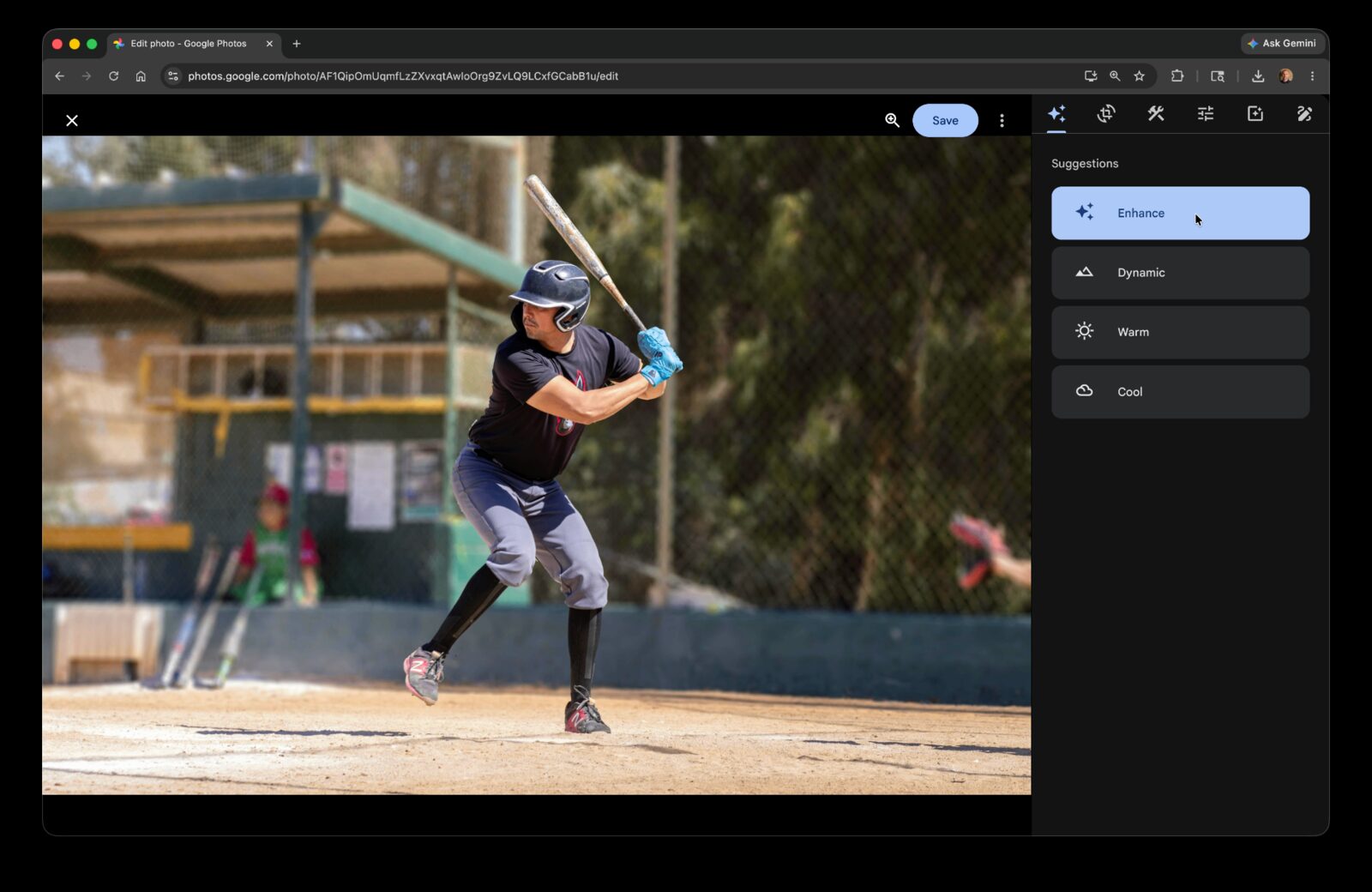
Single-photo workflow: open the photo, tap Edit, tap Auto Enhance, tap Save. The Auto Enhance pass corrects exposure and color and usually rescues a dim gym shot into something you'd happily send.
For 200 tournament photos, manual Auto Enhance is 30 to 35 minutes. That's after an already-long Saturday at the gym, and you want to be in bed.
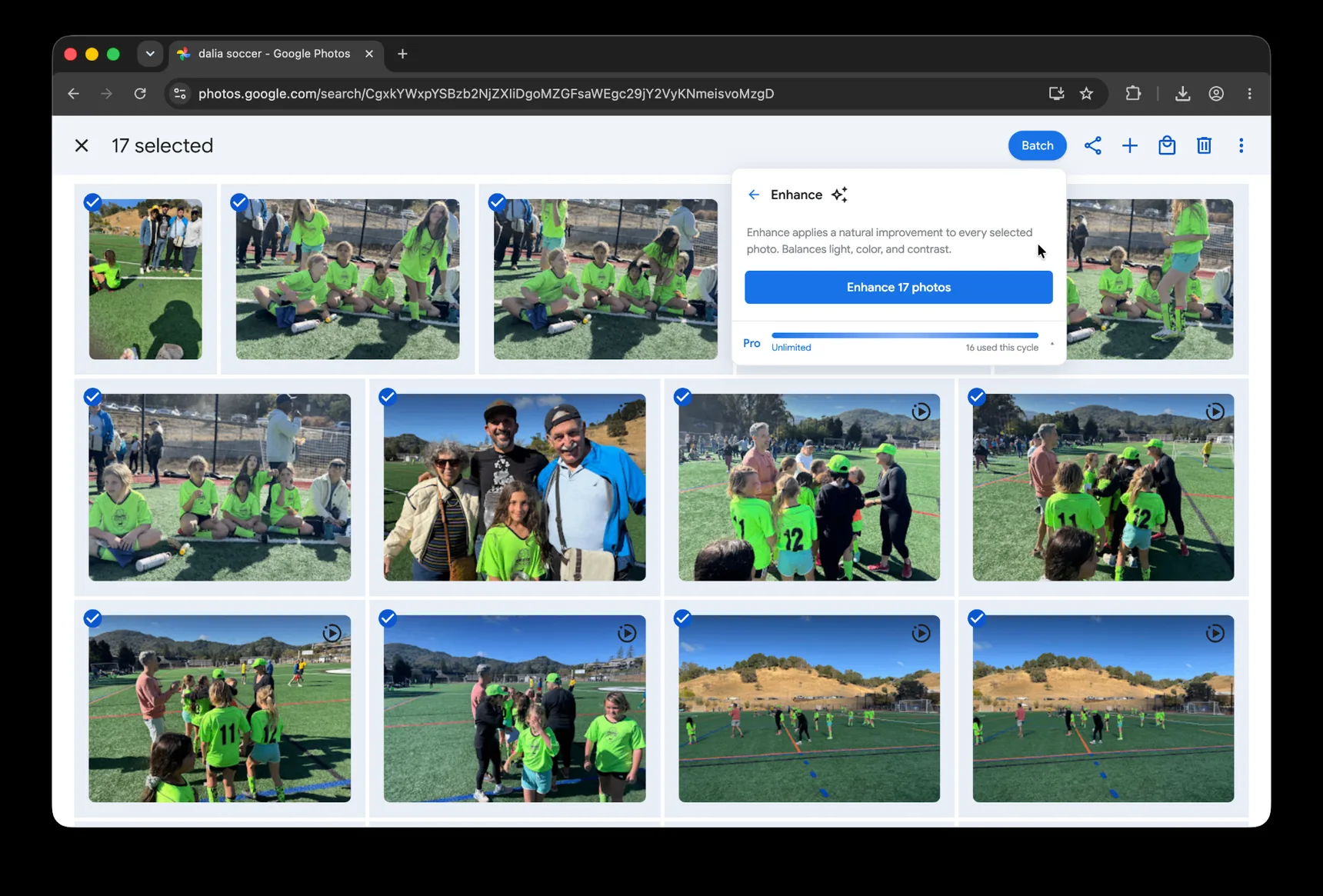
Or do it across all 200 at once.
Batch for Google Photos is a Chrome extension that handles exactly this kind of repetitive work across a selection. Batch never uploads your photos. The edits happen in your open Google Photos tab. For the full step-by-step version, see our bulk edit Google Photos guide. For tonight's workflow, do the keeper pass first (from Section 3 above) and run Batch on the 20-40 keepers, not the full 200. Three to four minutes hands-off, ready before you're done brushing your teeth. The full-album cleanup can wait for a calmer evening. Open the event album in Google Photos, select your starred keepers, click Batch in the toolbar, choose Auto Enhance, and let Batch work through the selection while the tab stays open.
A practical note for sports photos specifically: Auto Enhance can introduce visible noise on already-grainy gym photos. The algorithm tries to brighten the shadows, which on a noisy source produces a brighter but grainier image. For your highest-priority photos, the championship-winning moment, the kid's first goal of the season, spot-check at full size and consider a manual Brightness adjustment instead of Auto Enhance, which is gentler on noise. The Adjust panel's Brightness slider lifts the whole image evenly without recovering noise.
Plus is the right tier for ongoing work. Volume parents shooting 20 to 40 events a year run this workflow regularly; the tier upgrade pays back in the first month or two.
Cropping for the team chat or grandparents' frame
Different sharing destinations want different aspect ratios. Phones default to 4:3 portrait, which often crops tightly on group shots. The team chat is fine with 4:3 or 16:9; grandparents' framed photo wants 5:7 or 8:10 standard print sizes. Instagram is 1:1 or 4:5 depending on whether you're posting to grid or Stories.
Single-photo cropping in Google Photos: open the photo, Crop tab, pick the aspect ratio from the presets, adjust the crop frame, save. Quick for one photo; tedious for 30 keepers.
For 30 keepers cropped manually for the team chat in 16:9, that's 12 to 15 minutes of repetitive cropping. Add another pass for grandparents' frame and you've added another 15 minutes.
Or apply the same aspect ratio across the keeper subset with batch cropping. Same Batch tool. Pick 16:9, run, done, that's the team-chat batch. Run again with 5:7 for the grandparents' frame batch.
A tip: for action shots specifically, override Google Photos' suggested crop. The suggestion centers on faces, which is fine for portraits but wrong for sports, the action (the ball, the jump, the swing) is often the better visual subject. Crop with the action centered, not the face. The kid mid-kick with the ball in frame reads better than the kid mid-kick with the face perfectly centered and the ball out of view.
Plus is the right tier for ongoing work. A tournament a week, cropped for grandparents and the team chat, fits inside the monthly Plus quota.
Captioning so you can find Emma's spring season in five years
Captioning is the part most parents skip. It's also the difference between an archive that's findable in five years and a library where every photo of every season blurs into every other.
The caption flow: tap the photo, swipe up to open the info panel, tap "Add a description." Whatever you type becomes searchable across your library, type "Emma championship game spring 2026" today, find it by typing "Emma championship" in 2031.
Why this matters specifically for kids' sports: face groups don't help when the search is from years later. Liam at 8 years old in your face groups doesn't reliably match Liam at 13 looking for his third-grade recital photo. The typed caption is the fallback that keeps working as kids grow.
For batch-level captions, every photo from one event can share a base caption. "Westside Tournament · April 2026 · Emma" goes on every photo from that day. Batch's Add Caption applies the same caption template across the whole event's photos. Per-photo additions (the championship goal, the team huddle) come later for the standout shots, but the event-level caption is the searchable baseline.
A reusable caption formula: child · activity · event · season/year · location. Example: "Emma · soccer · Westside Tournament · Spring 2026 · San Rafael." The formula keeps captions consistent across years of events, which matters most when future-you is searching back for a specific season or moment.
A tip: include the year in every caption. "Emma soccer" doesn't help when there are eight years of Emma soccer photos in your library; "Emma soccer 2026 spring" does. Future-you will be searching for specific seasons, specific tournaments, specific moments, the year is the disambiguator that makes the search return one result instead of two hundred.
Plus is the right tier for ongoing work. An event-level caption for every tournament across a season fits inside the monthly Plus quota.
Sharing with grandparents, the team chat, or the school yearbook
The album is brightened, cropped, captioned. Time to send it.
Grandparents are the primary audience for most parents. Google Photos shared album links work without a Google account, so even grandparents who don't use Google can view the album in a browser by clicking the link. For grandparents who only know email, the Download all → email zip path works. For the ones who can only handle attachments, send five favorites individually, easier than asking them to navigate a shared album link.
The team chat is faster. Most parents text or use a group chat app (GroupMe, WhatsApp, the team's Sports Engine chat). Google Photos' "Share to" flow exports the keepers directly to the messaging app of your choice, pick the photos, choose Share, pick the app. The chat fills with the keepers; the team's parents see them and react with appropriate volume.
The school yearbook is an annual ask in many schools. The yearbook coordinator collects parent photos to round out the official photographer's coverage. Use Google Photos' download flow to export a subset of the season's keepers; hand the folder over to the coordinator at the end of the year.
These photos are how your kids will remember being a kid. The 30 minutes you spent making them look right is the gift you're giving them in 20 years, when they're scrolling through their childhood looking for the photo that proves they were actually that fast on the soccer field.
Where to go next
You've got tonight's tournament workflow. The same pattern repeats for every event from now through high school graduation.
The complete guide to bulk editing Google Photos covers the editor's tools in depth, the same Auto Enhance, Crop, and Caption pieces you used here, in the broader context of every other situation they show up in.
The wedding photos post walks through a parallel high-volume event workflow, 1,000+ photos with the same enhance-crop-caption arc. If your family has a wedding coming up, the same workflow applies at higher volume.
The vacation photos post covers the post-trip cleanup arc, which is the same shape as a post-tournament cleanup at a different scale. The cropping and sharing sections in particular translate directly.
The family historian post on restoring old family photos covers the captioning approach in particular detail, useful eventually, when you start building the archive of childhood that your kids' kids will inherit.
Your kids will scroll back through these one day. Make sure the photos they find are the ones worth finding.
Get tonight's photos ready before they disappear into the backlog
Batch helps brighten and crop the keepers from a game, recital, or school event.
Start free · Works in Chrome on desktop · Photos stay in Google Photos
Where to go next
- How to Bulk Edit Google PhotosSelect once, then enhance, filter, crop, rotate, caption, or preset the whole set.
- Cleaning up wedding photos in Google PhotosFinish the guest album before the photographer's gallery arrives.
- Enhancing vacation photos in Google PhotosFinish the vacation album in a Sunday afternoon.
- Restoring old family photos in Google PhotosFinish the family archive you've been avoiding for years.
- Convert Live Photos to Stills in Google PhotosKeep the key image, remove the motion, and know exactly what happens to the original.